

Why connect LinkedIn?
Connecting LinkedIn will highlight your experience with Magic Patterns on your LinkedIn profile. It’s a verified signal that shows you build with Magic Patterns, and it sits in the Connected Apps section of your profile where anyone who visits can see it: recruiters, clients, teammates.How to connect
Open your profile settings
Go to Settings, then Profile, then Connected Accounts, and find the LinkedIn
card.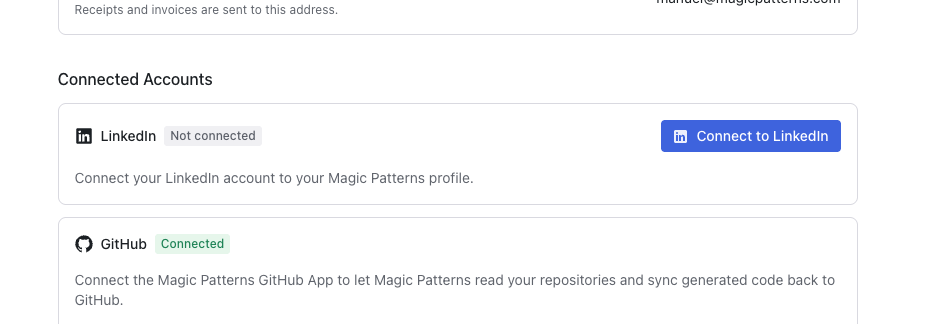
Click Connect to LinkedIn
LinkedIn opens a window asking for your permission. We only ask for the one
thing we need, which is permission to add your skill badge.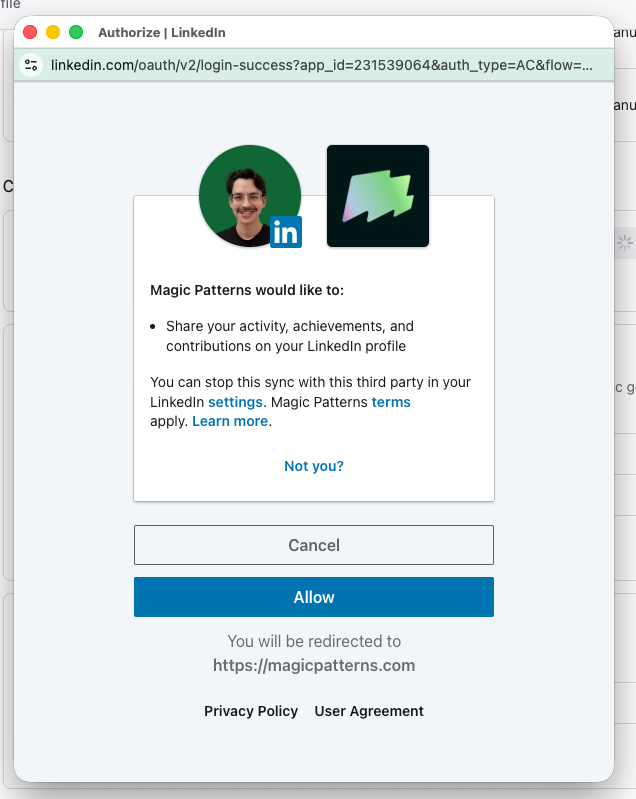
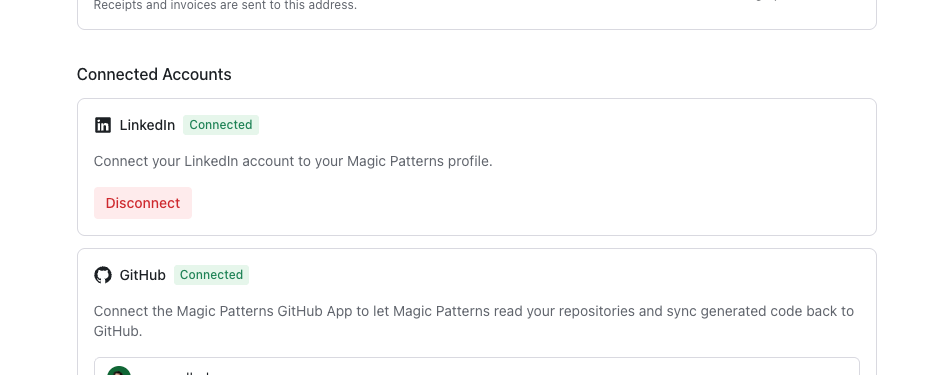
Removing the badge
Changed your mind? Click Disconnect on the same LinkedIn card. We take the badge off your LinkedIn profile right away and delete the connection on our side.Your privacy
What can Magic Patterns do on my LinkedIn?
What can Magic Patterns do on my LinkedIn?
Only one thing: add and later remove your Magic Patterns under Connected Accounts. You’ll notice our permissions are tightly scoped; we
can’t read your messages, post on your behalf, or see your connections.
Can I remove it later?
Can I remove it later?
Yes, anytime. Hit Disconnect and the badge comes off your profile right away.
The badge isn't showing up on my profile
The badge isn't showing up on my profile
It can take a moment to appear. If it still isn’t there, try disconnecting
and reconnecting. If that doesn’t help, reach out to support at support@magicpatterns.com.